

Internet Banking
Putting the power back in your hands. Explore what’s new with helpful guides and videos.


Easy, secure banking, your way
Access your account and manage your finances with confidence through our upgraded Internet Banking platform. Designed to be simple, secure and personalised, giving you greater visibility and control over your money – wherever you are.
Step one: Contact us
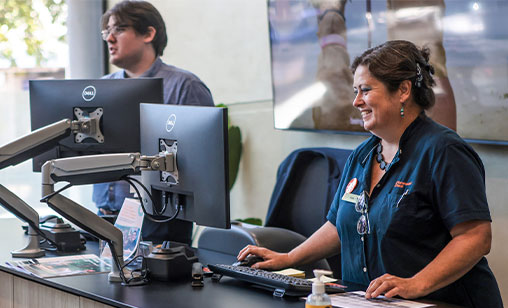
If you have never registered for Internet Banking simply contact us on 1300 728 728 or visit one of our branches.

Step two: Personalise your dashboard
Set up the Quick Balance widget on your dashboard and choose which accounts appear at a glance, making it easy to check balances and keep track of your finances.

The easy way to manage your money
Enjoy a modern, intuitive layout that aligns with our Mobile Banking App experience. Designed to feel familiar and easy to navigate, it makes managing your day-to-day banking simple.
Accessible by design
Built with accessibility in mind, our upgraded Internet Banking helps you bank with confidence. Clear layouts, improved readability and thoughtful design choices make managing your money easier for everyone.
Built-in security checks
Bank with greater peace of mind thanks to built-in protections like Confirmation of Payee, along with scam and fraud warnings designed to help you pause, check and stay safe before making a payment.
Understand your spending
Spend Tracking shows you where your money goes. Transactions are automatically categorised and summarised in easy-to-read insights, giving you a clear view of your spending so you can make informed financial decisions.
Go paperless with eStatements
Access your statements anytime with secure, digital eStatements. View, print or export your records whenever you need them, all in one convenient place.
Business Banking, made simpler
For business and community customers, Business Banking makes it easy to manage payments at scale. Create and process batch payments efficiently, saving time and streamlining your everyday financial operations.
Why bank with us?
A thriving community is central to our vision and how we measure success. Summerland Bank is the people’s bank, serving our local community and together, making it stronger.
Owned by the people, operated by the people
Founded on a belief in the power of the collective, we are a community-owned bank that prides itself on always being there to support our community, in both the good times and the challenging ones.
Banking the way it should be
With branches throughout the Northern Rivers NSW and South East Queensland communities, we offer good old-fashioned customer service with all the bells and whistles of a modern bank.
Quick and easy to get started
Whether it’s your first-ever account or you’re looking for a fresh start with a customer-owned, community-minded bank, we can get you up and running in minutes – online, over the phone, or in a local branch.
Innovative Digital Banking
Our internet banking platform is safe, secure and easy-to-use, so you can check your accounts, transfer funds, pay bills, and access your money. If you’re on the go, it’s more of the same with our user-friendly app. Our app is available for both iOS (Apple) and Android.
ATM Network
Summerland members can access all Summerland ATMs as well as a wide network of ATMs in Australia direct-charge free. This makes it easy to access your cash wherever you are in Australia.
Getting started & registration
How do I register for Internet Banking?
You can register by calling us on 1300 728 728 or visiting your nearest Summerland branch.
How do I log in to my Internet Banking if I have never used the service before?
You’ll receive an initial password from Summerland Bank. Visit Summerland IB Login, enter your customer number and password, then follow the prompts to set a new secure password.
How long does a temporary password last?
Temporary Internet Banking passwords expire within 24 hours, so be sure to log in and update it promptly.
Will my Customer Number and password still be the same?
Yes. Your current Internet Banking login details (customer number & password) remain the same.
Do I need Internet Banking to use the Summerland Mobile App?
Yes. You must be registered for Internet Banking before using the App. Once registered, you can download the Mobile App and log in using your customer number and Internet Banking password. After your first login, you can set up a 4 to 8 digit PIN or use biometric login, such as Face ID or fingerprint, for faster and more secure access.
Will the current App still work once the new Internet Banking goes live?
Yes. If you have automatic App updates turned on, your existing Summerland Mobile App will update automatically. Otherwise, you’ll need to manually update it via the App Store or Google Play.
Logging in, passwords & access issues
What should I do if I forgot my password?
Click the “Reset here” link on the login page. If you have security questions set, follow the process available in our User Guide.
If no security questions are currently set, follow the process available in our User Guide.
Why can’t I see my accounts when I first log in?
You will need to enable your new Quick Balance widget to see your accounts. Follow the process available in our User Guide.
Can I still access Internet Banking if I'm travelling overseas?
Yes, but ensure your mobile number can receive SMS for Two‑Factor Authentication (2FA) or that you have the VIP Token/App configured, as you may need authentication when logging in or completing transactions.
Can I use ‘screen scrape’ to share data with other platforms like accounting software?
No. Most secure platforms offer data sharing through ‘Open Banking’ or Consumer Data Right data sharing. You can establish these connections from the app or software you are seeking to share banking data to, and then manage the established sharing agreement in your Summerland Internet Banking or App.
You can also manually upload transaction data after downloading the record from the transaction history page.
Accounts, balances & transaction
How do I check my account balances and transaction history?
After logging in, go to Accounts > My Accounts and then select your account to view balances, transactions, and use additional functions like statements.
How can I download my transaction history?
Downloading your transaction history from your Internet Banking is simple.
Step 1: Log in to Summerland Internet Banking
Step 2: Select the Accounts Tab > My accounts
Step 3: Select the relevant account
Step 4: Click Export
Step 5: Select the date range (Last 1 month, 3 months, 6 months, 12 months, or custom range)
Step 6: Select file type (QIF, PDF, XLS, CSV, OFX)
Step 7: Confirm your choice & export
Payments, transfers & limits
How can I transfer money between accounts or to someone else?
Use the Pay section to transfer funds internally, to your other Summerland accounts, or externally via PayID, BPAY, or international payments. You can also schedule payments in advance.
What are the daily transfer and payment limits?
- Internal transfers (Summerland to Summerland): $50,000/day
- External transfers (Pay Someone): $5,000/day
- BPAY transfers: $5,000/day
- International transfers: $1,000/day
Customers needing higher daily limits will need to contact us on 1300 728 728
What is an Auto Transfer (periodical payment)?
A periodical payment is an electronic transfer of funds to another account. The transfer can be set up as a one-off or a recurring payment (weekly, fortnightly or quarterly) and can be to an internal or external bank account. They can also be set up via BPAY®.
Periodical payments can be modified, suspended or cancelled at any time by accessing your Internet Banking, Mobile Banking App or by calling us.
You can:
- Change the date;
- Change the frequency;
- Change the amount; or
- Suspend the payment temporarily or permanently.
Will my saved payees, BPAY billers, and scheduled payments carry across to the new Internet Banking?
Yes, your existing saved details and scheduled payments remain active. Your experience will simply become more intuitive and aligned with the Mobile App.
Why are my favourites in a different order?
Favourites are now presented in alphabetical order. If your list contains payees you no longer require you can remove them from the list by clicking the orange star beside their name and confirming the removal when prompted. When making a payment you can also toggle between your favourites or recent payee list or search by name from the search bar.
Cards
How do I activate my card or change my PIN?
Go to the Cards section to activate your card, and to update your PIN.
Security, privacy & fraud protection
What security measures protect my Internet Banking?
Internet Banking is protected by multiple layers of security designed to keep your information and money safe.
This includes Two‑Factor Authentication (Secure SMS or a VIP Token / VIP Access app), security questions, and a secure password.
In addition, Internet Banking uses advanced security measures that work quietly in the background, including:
- Strong encryption to protect your information as it travels between your device and the bank’s systems, helping prevent unauthorised access
- Industry‑standard security protocols that meet banking and payment security requirements
- Continuous monitoring and fraud protection, which helps detect and block suspicious activity
- Device and login checks, with alerts you can set up to notify you if your account is accessed from a new or unusual device
- Additional protective checks for higher‑risk activity or unusual network traffic, designed to stop bots, scams, and malicious attacks without interrupting everyday banking
Together, these layers help ensure your Internet Banking remains secure, reliable, and protected at all times.
How do I know my Internet Banking is secure?
Your Internet Banking includes:
- Stronger 2FA options
- Modern encryption standards
- Fraudprevention controls
- Device login alerts
These enhancements significantly improve security and align with industry standards.
Why am I being asked for Two Factor Authentication (2FA)?
2FA is required for:
- New payee transfers
- Batch payments
- International transfers
- Certain profile changes
You can authenticate using Secure SMS or VIP Online Security token/app.
How do I know if a device login notification is legitimate?
Whenever you log in to Internet Banking or register the App on a new device, you’ll receive an email with the device details, date and time. These notifications can also be triggered if you’re using a VPN. If you don’t recognise the device, then contact us immediately.
What is Open Banking, and how does it affect me?
Open Banking allows you to securely share banking data with accredited providers (e.g., budgeting apps, comparison tools). It simplifies refinancing, comparisons, and financial management but only with your consent. Open Banking arrangements are established via the organisation you wish to share data with; however, you can manage established arrangements in Internet Banking or the App.
Alerts, notifications & preferences
How do I set up or manage alerts and notifications?
In the Alerts/Notifications section, you can view, set up, and manage alerts for account activity, payments, and security notifications.
Personal details & settings
How can I manage my personal details or update my contact information?
Go to Settings > My Details to update your personal information, contact details, and linked devices. Keeping your details up to date ensures you will receive important alerts and updates.
Fees & charges
Are there any fees for using Internet Banking?
There are some costs that can be incurred by using your Internet Banking for transfers. This is based on your fee package and inclusions. If you are unsure of which fee package is best for you, please get in touch!
Internet Banking
Need help with Internet Banking?
Our short videos and resources show you how key features work, highlighting helpful tips to make managing your banking simple and intuitive.
Quick Balance setup and use
Learn how to set up and use Quick Balance for fast access to your account balances without navigating through multiple screens.


Secure SMS registration
See how Secure SMS supports authentication and verification. This video demonstrates how one‑time codes are sent and used to help keep your account secure.
Setting up security questions
Learn how to select and configure questions to add an extra layer of protection to your account.
Password reset (using security questions)
This video walks through the process step‑by‑step, highlighting how security questions can verify identity and restore your access quickly.
Password reset (without security questions)
This video demonstrates the alternative password reset process if you do not have security questions enabled.
Login process / first look at the platform
Get a quick introduction to the platform, including the login experience and an overview of key features.
Ready to get started?
If you’re ready for a braver kind of banking, here are three ways to get started with Summerland Bank.

Open an account online
Get started online with your ID at the ready and a quick check of your personal details.
Online applications are currently unavailable while we upgrade our digital application experience.

Contact us
Good old-fashioned customer service, the Summerland way.
Visit a branch
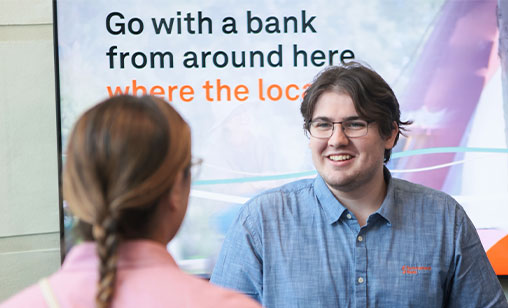
Find your closest Summerland Bank branch and our friendly local team will be ready to help.
Is there something else we can help you with?
A quick jump to content you may be interested in.